Containerization
Virtual Machines to Containers
- VM is too heavy for a simple process as it boots a whole OS every time.
- Containers are isolated, but share OS, and where appropriate, also bins/libs. So SDE focuses more on app.
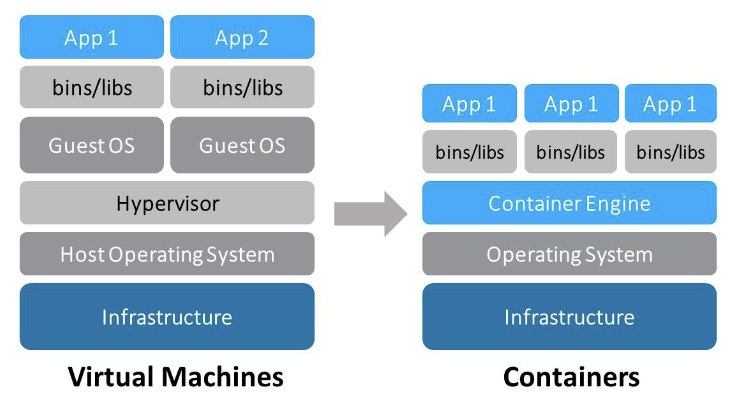
Comparison:
- Lightweight: Containerization avoids duplication of app Bins/libs, and only save the modifications did by different containers, without changing the original binaries.
- Security: VM is more secure because of full isolation while Container has only process level isolation.
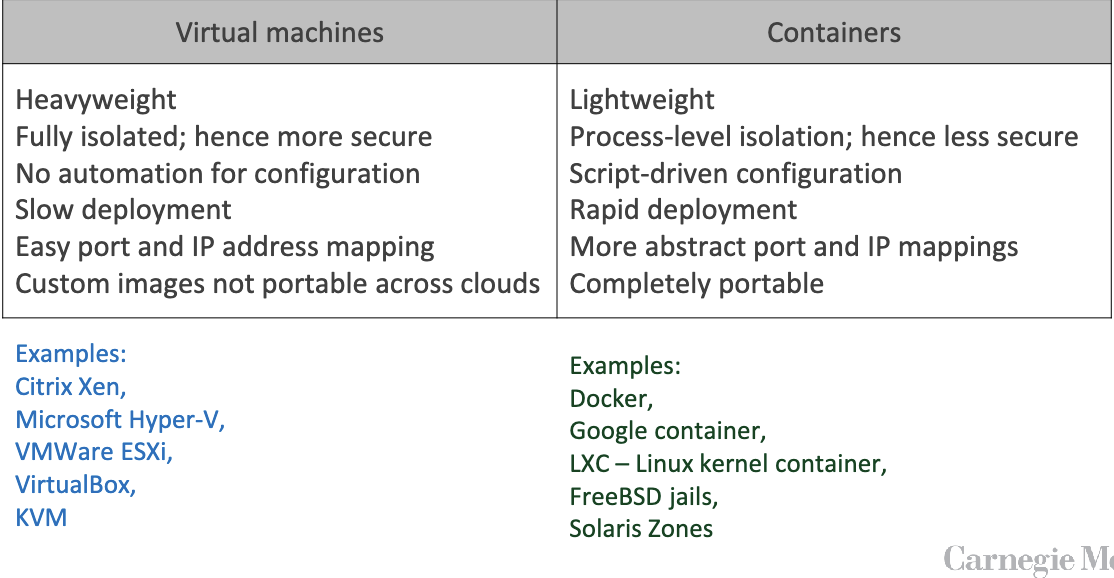
Motivation of Containerization
Development challenges
- Containerization makes version control much more easier, and more importantly, safer, to avoid a simple app influence the whole system.
- Solves the conflict of different dependencies, versions, environments(
N x Mconfigurations, multiplicity of hardware env), multiplicity of stacks, and contents. - Modularity and scalability: can be quickly and smoothly migrated & scaled, ensuring compatibility across different environments.
Solution: Containerization
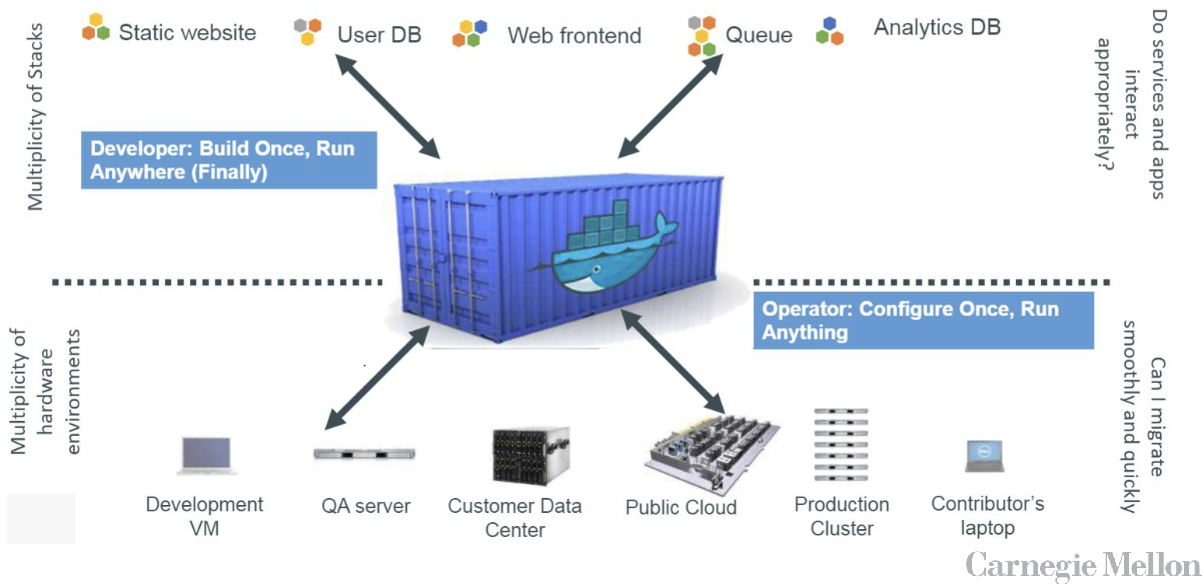
Docker - leading container
Why popular
By mid-2013, dotCloud company released a tool that used these ideas to provide a better way to deploy encapsulated applications. The tool later became Docker and dotCloud became Docker Inc
- Most widely known, and used
- Easy to install and use
- Free
- Load fast: sharing library among containers
- Docker Hub: public registry of container images
- Its file system!
Union File System(UFS)
- Union File Systems basically allow you to take different file systems and create a union of their contents with the top-most layer superseding any similar files found in the file systems below it.
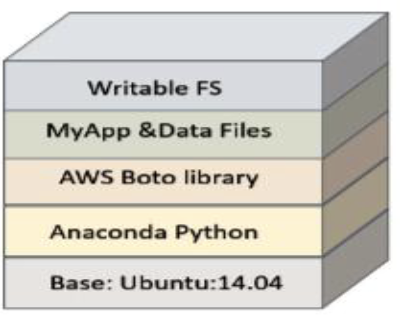
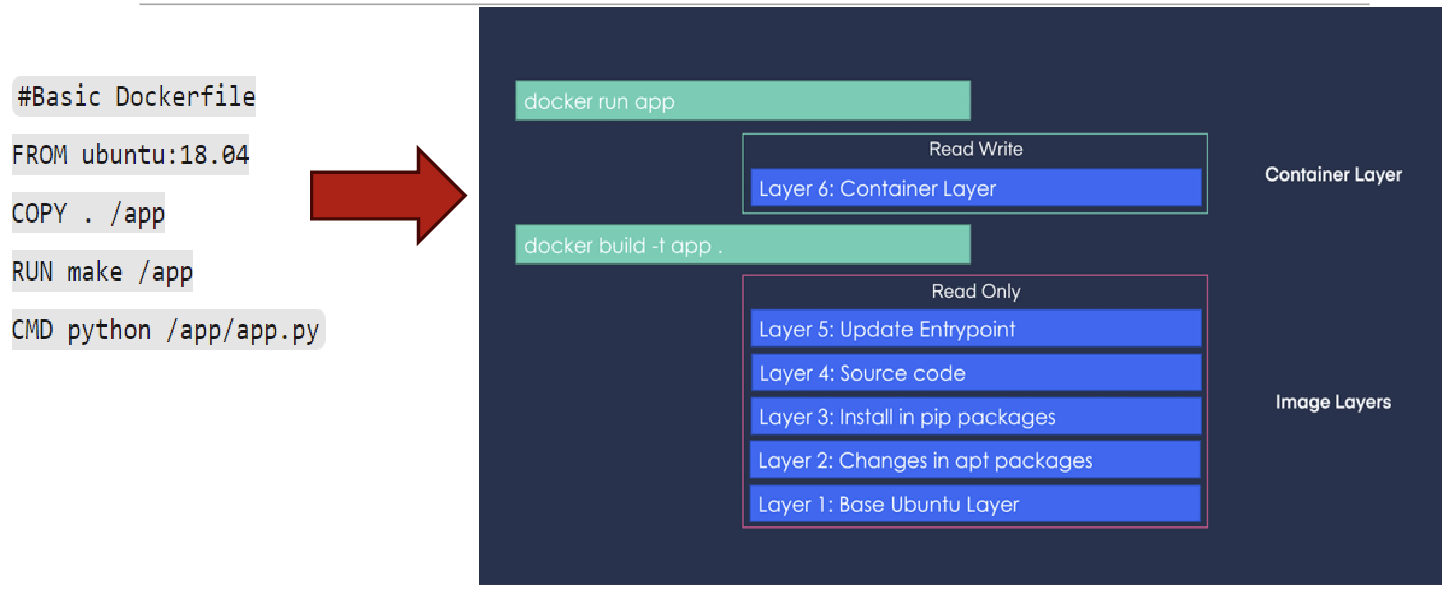
- Docker images are composed of layers in the UFS. The image is itself a stack of read-only directories. The base is a simplified Linux file system.
- Additional tools that the container needs are then layered on top of this base image, each in its own layer. Each layer represents an instruction in the image’s Dockerfile.
- Packages in the hub has Layers which can be some personalized modification upon the original package/app. But the layers can be shared by different app/packages such that the next time you pull some packages sharing same layers, no need to download again.
- All containers with the same image see the same directory tree, so it loads the directory tree in the memory only once among all instances
- When the container is run, a final writable file system is layered on top.
- As an app in the container executes, if it needs to modify an object in the read-only layers, it copies those objects into the writable layer. Otherwise, it uses the data in the read-only layer, which is shared with other container instances.
- Thus, typically only a little of the container image needs to be actually loaded when a container is run, which means that containers can load and run much faster than virtual machines. Launching a container typically takes less than a second.
- In addition to the file system layers in the container image, you can mount a host machine directory as a file system in the container’s OS. In this way, a container can share data with the host. Multiple containers can also share these mounted directories and can use them for basic communication of shared data.
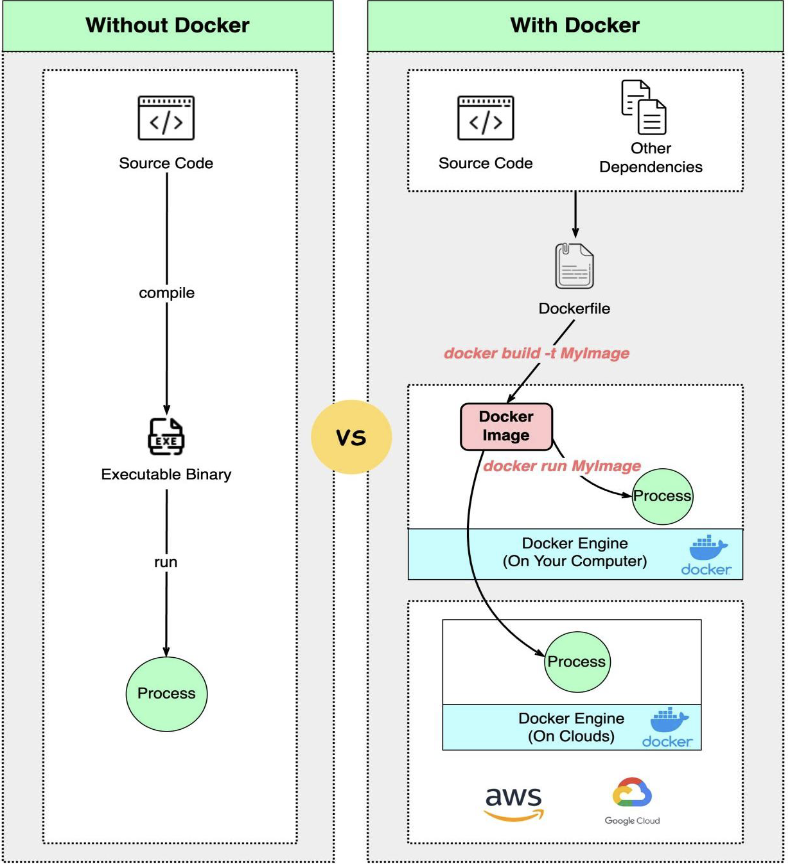
Docker Dev Workflow
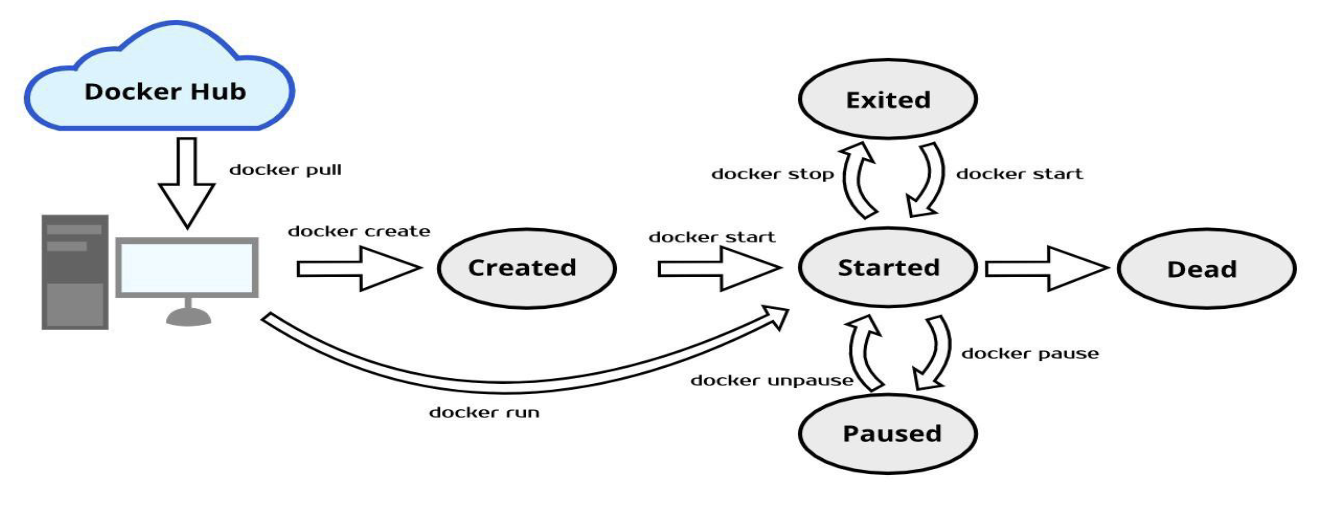
Docker Lifecycle Overview
Dockerfile
Most important commands:
| Instruction | Description |
|---|---|
| ADD | Add local or remote files and directories. |
| ARG | Use build-time variables. |
| CMD | Specify default commands. |
| COPY | Copy files and directories. |
| ENTRYPOINT | Specify default executable. |
| ENV | Set environment variables. |
| EXPOSE | Describe which ports your application is listening on. |
| FROM | Create a new build stage from a base image. |
| HEALTHCHECK | Check a container’s health on startup. |
| LABEL | Add metadata to an image. |
| MAINTAINER | Specify the author of an image. |
| ONBUILD | Specify instructions for when the image is used in a build. |
| RUN | Execute build commands. |
| SHELL | Set the default shell of an image. |
| STOPSIGNAL | Specify the system call signal for exiting a container. |
| USER | Set user and group ID. |
| VOLUME | Create volume mounts. |
| WORKDIR | Change working directory. |
Dockerfile vs. Docker Union Filesystem
Docker commands
-
Build Your Docker Image (and tag it) – Notice the period at the end
docker build -t yourDockerHubID/your_image_name:tag .Example:
docker buildx build --platform linux/amd64,linux/arm64 --push -t allenhu28/hw2-jupyter:latest . -
Test your image
docker run (-d) -p 8888:8888 yourDockerHubID/your_image_name:tagor simply
docker run 8888:8888 yourDockerHubID/your_image_name:tag -
Upload to DockerHub
docker push yourDockerHubID/your_image_name:tag -
More examples of build and add tag:
docker build -t hw2-jupyter . docker tag hw2-jupyter allenhu28/hw2-jupyter:latest -
Docker Compose
- Create and start all the containers listed in the “docker-compose.yml”:
docker-compose up -d - List all the containers belong to the compose environment instance:
docker-compose ps - Set the number of containers:
docker-compose scale web=3
- Create and start all the containers listed in the “docker-compose.yml”:
Multiple containers
Solutions to connect several containers:
- Docker networking
- Kubernetes
- Docker Compose: a tool for defining and running multi-container Docker applications. With Compose, you use a single YAML file
docker-compose.ymlto configure your multi-container application’s services. Then, with a single command, you create and start all the services from your configuration.- YML File example:
version: '3'
services:
  web:
    build: .
    image: nginx
    ports:
      - "8080:80"
  db:
    image: mysql
    environment:
      MYSQL_ROOT_PASSWORD: example
    ports:
      - "3306:3306"
    volumes:
      - db_data:/var/lib/mysql
volumes: # Shared across services)
    db_data: {}
Network:
  default:
    driver: bridge
- YML File example:
Docker Limitations
- Security: Containers share the host OS kernel, so a malicious container could potentially exploit vulnerabilities in the kernel to compromise the host system or other containers.
- Does not offer cross-hardware-architecture portability
- Not easy to use with Desktop applications that require rich GUI
- Challenging to manage large number of docker containers manually
Last modified on 2025-11-22